Quantum Fiber with the Unifi UCG Ultra
I recently made the switch from Xfinity to Quantum Fiber and I couldn’t be happier. It’s cheaper, has symmetrical 1Gbps up/down and the latency is much improved (1ms vs 15-20ms).
Getting it set up and working with my Unifi UCG Ultra was a bit tricky though. I read through some conflicting information and had to try a few different things to get it stable. This is the setup that worked best for me. In short, I learned that having the Quantum Q1000K SmartNID do the VLAN tagging is the best configuration.
Step 1: Put Q1000K SmartNID in Bridge Mode
-
Plug an ethernet cable into the LAN side of the Q1000K
-
Open a browser and go to http://192.168.0.1. It might take a few tries to get it to load. If you don’t get the admin interface after a few minutes you can try resetting the Q1000K using the reset button.
-
Log in with username “admin” and the password that is displayed on the sticker on the front of your Q1000K box
-
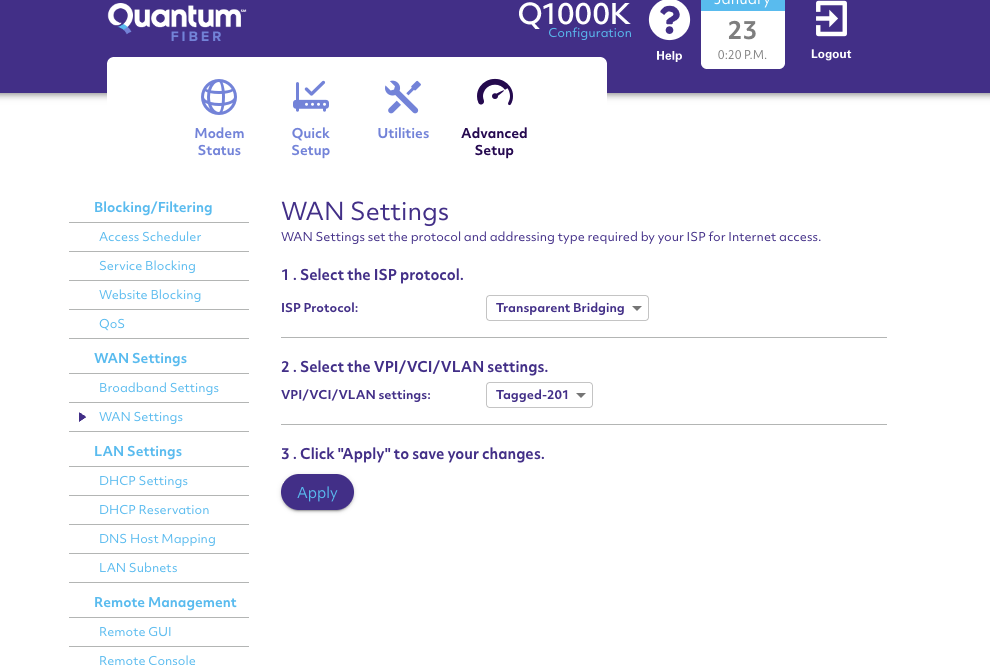
Once logged in, go to Advanced Setup > WAN Settings > WAN Settings.
-
Change ISP Protocol to “Transparent Bridging”
-
Make sure VPI/VCI/VLAN is set to “Tagged-201”
-
Click “Apply”
Your configuration should look like this:
Step 2: Connect Unifi Cloud Gateway into Q1000K
Plug your Unifi Cloud Gateway in to the LAN side of the Q100K. It’s that simple. Don’t configure any VLANs or change your existing Unifi setup in any way. Everything should just work now.
Other Considerations
One thing I learned is that it’s important to have a local-only Unifi account to be able to access the Unifi management interface when you have no internet connection. I set this up after the fact but it would have been really helpful during troubleshooting.